

Prerequisites
- Get your API Key: If you haven’t already, generate a key in the Kimi (Moonshot AI) developer console.
- Copy the Key: Keep your API key ready to paste.
Configuration Steps
1. Access Application Settings
- Launch Eigent and navigate to the Home Page.
- Click on the Agent tab, then click on the Models button.
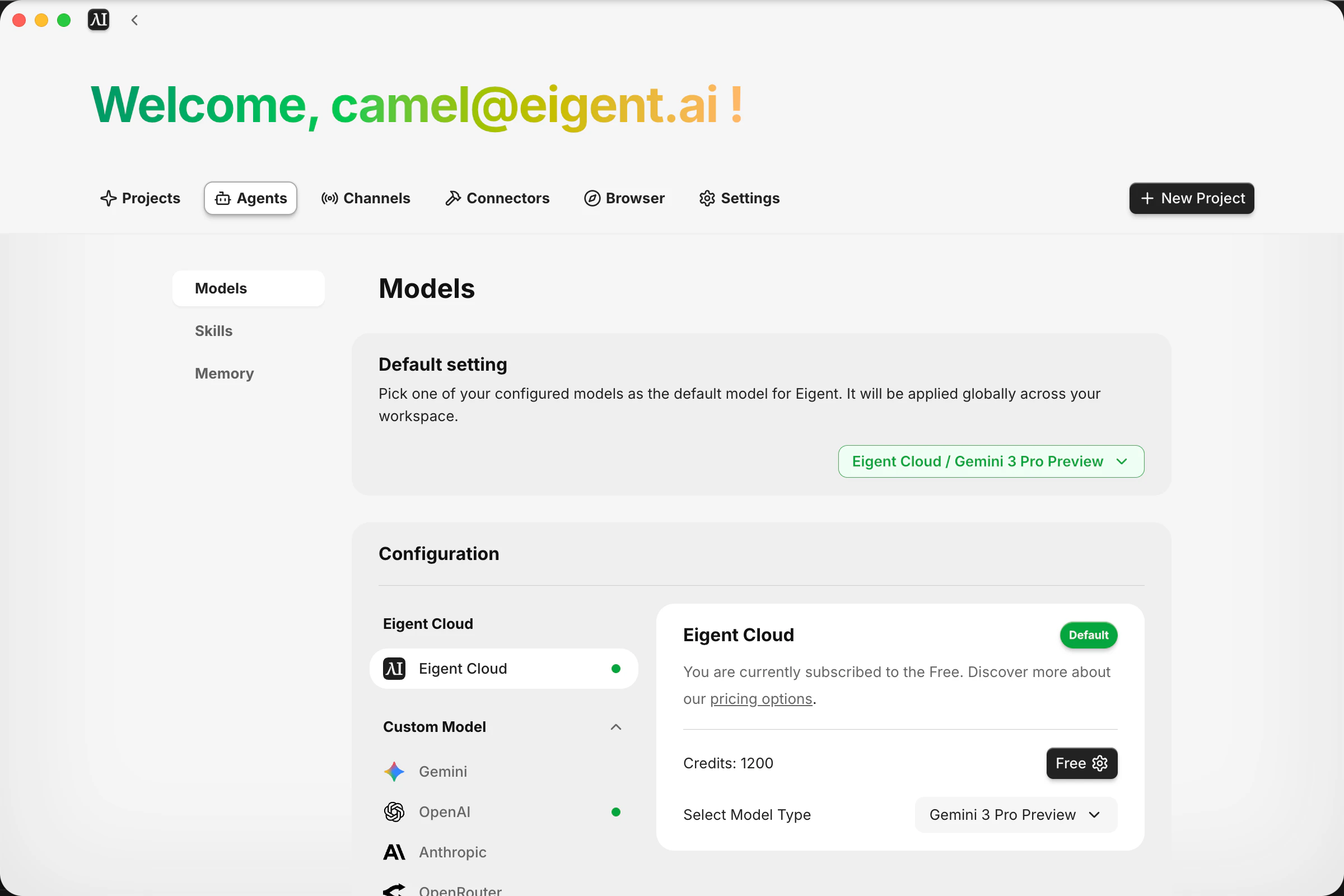
2. Locate Model Configuration
- Scroll down to the Custom Model area.
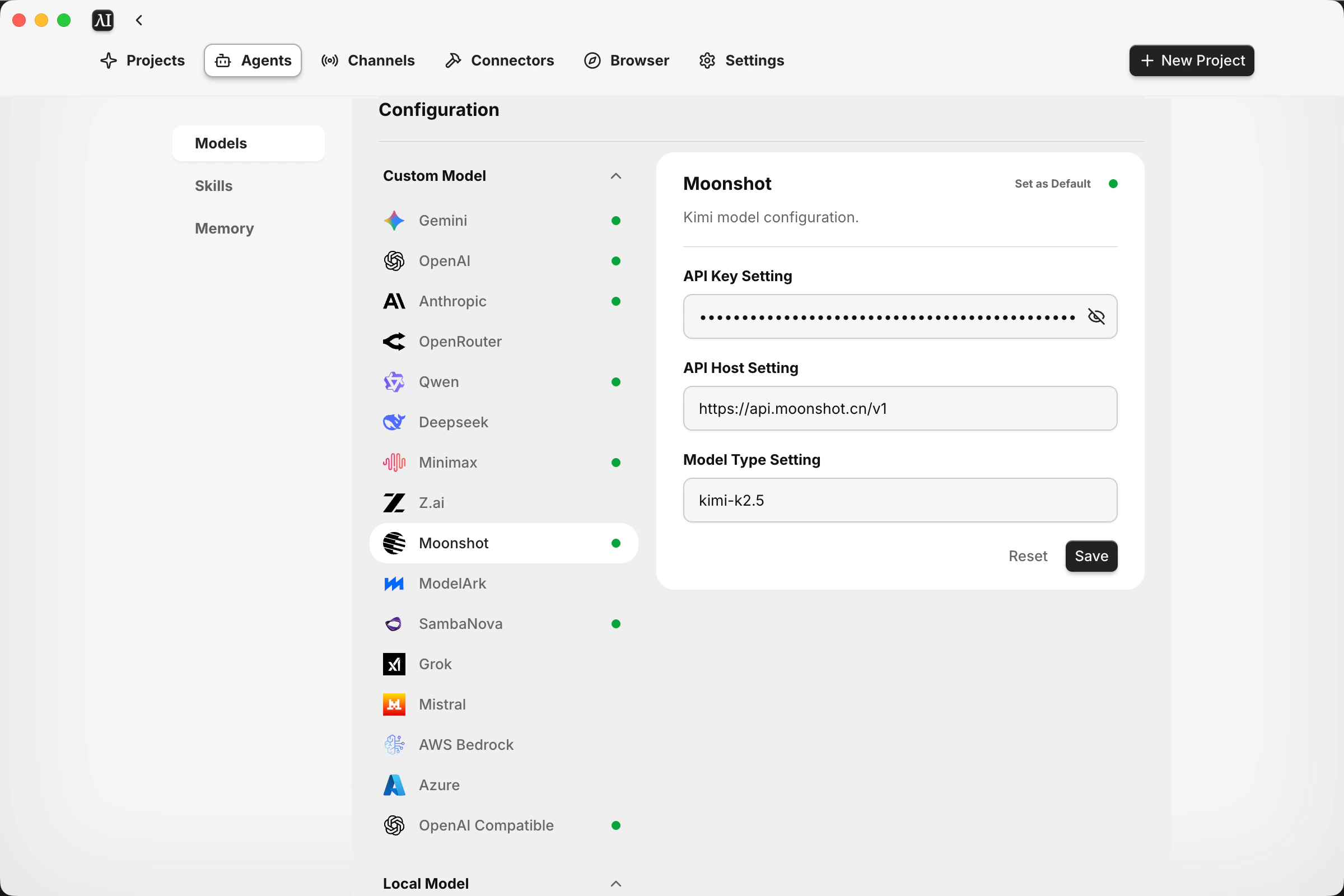
- Look for the Moonshot card.
3. Enter API Details
Click on the Moonshot card and fill in the following fields:- API Key: Paste the key you generated from the Kimi console.
- API Host: Enter the appropriate API endpoint host (for example,
https://api.moonshot.ai/v1). - Model Type: Enter the specific model version you wish to use.
- Example:
kimi-k2.5
- Example:
- Save: Click the Save button to apply your changes.
4. Set as Default & Verify
- Once saved, the “Set as Default” button on the Moonshot card will be selected/active.
- You are ready to go. Your Eigent agents can now utilize the Kimi model.